The post Chainable external javascript file loading appeared first on webtoolkit.info.
]]>In this way you will form some sort of chainable javascript library loading, which will guarantee you that every file will be loaded only then when it has its dependencies loaded.
Usage
This example shows how to load jQuery library and only when its fully loaded then load jQuery UI library, and only then your scripts – “your-script.js”.
Source of the library
/**
*
*  Chainable external javascript file loading
*  http://www.webtoolkit.info/
*
**/
scriptLoader.load([
'http://ajax.googleapis.com/ajax/libs/jquery/1.3.2/jquery.min.js',
'http://ajax.googleapis.com/ajax/libs/jqueryui/1.7.2/jquery-ui.min.js'
'/feed/your_script.js'
]);


var scriptLoader = {
	_loadScript: function (url, callback) {
		var head = document.getElementsByTagName('head')[0];
		var script = document.createElement('script');
		script.type = 'text/javascript';
		script.src = url;
		if (callback) {
			script.onreadystatechange = function () {
				if (this.readyState == 'loaded') callback();
			}
			script.onload = callback;
		}
		head.appendChild(script);
	},

	load: function (items, iteration) {
		if (!iteration) iteration = 0;
		if (items[iteration]) {
			scriptLoader._loadScript(
				items[iteration],
				function () {
					scriptLoader.load(items, iteration+1);
				}
			)
		}
	}
}
The post Chainable external javascript file loading appeared first on webtoolkit.info.
]]>The post Javascript color conversion appeared first on webtoolkit.info.
]]>It supports RGB, HSV, CMYK color encoding systems.
First you need to create color object you want to convert from.
As mentioned above there are 3 types:
var obj = new RGB(10 /* red */, 20 /* green */, 30 /* blue */);
var obj = new HSV(10 /* hue */, 20 /* saturation */, 30 /* value */);
var obj = new CMYK(10 /* cyan */, 20 /* magenta */, 30 /* yellow */, 40 /* key black */);
Usage
Then you just need to pass that object to appropriate “ColorConverter” method.
To convert from HSV to RGB use library like this:
var result = ColorConverter.toRGB(new HSV(10, 20, 30));
alert("RGB:" + result.r + ":" + result.g + ":" + result.b);
Result: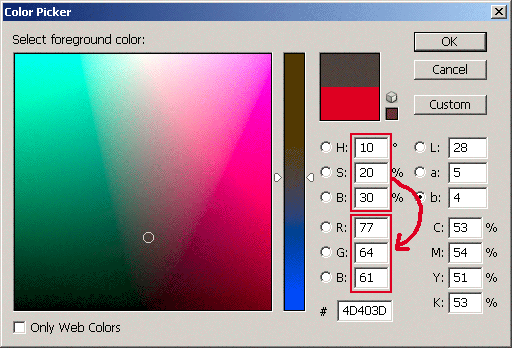
To convert from RGB to HSV use library like this:
var result = ColorConverter.toHSV(new RGB(10, 20, 30));
alert("HSV:" + result.h + ":" + result.s + ":" + result.v);
Result: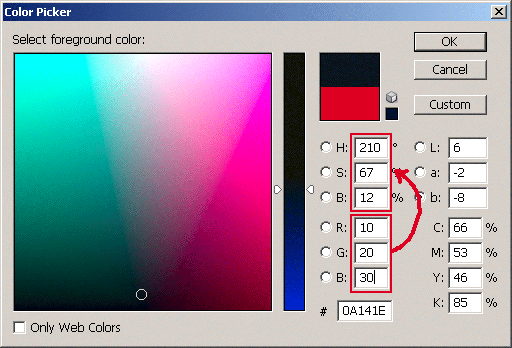
Source of the library
/**
*
*  Javascript color conversion
*  http://www.webtoolkit.info/
*
**/

function HSV(h, s, v) {
	if (h <= 0) { h = 0; }
	if (s <= 0) { s = 0; }
	if (v <= 0) { v = 0; }

	if (h > 360) { h = 360; }
	if (s > 100) { s = 100; }
	if (v > 100) { v = 100; }

	this.h = h;
	this.s = s;
	this.v = v;
}

function RGB(r, g, b) {
	if (r <= 0) { r = 0; }
	if (g <= 0) { g = 0; }
	if (b <= 0) { b = 0; }

	if (r > 255) { r = 255; }
	if (g > 255) { g = 255; }
	if (b > 255) { b = 255; }

	this.r = r;
	this.g = g;
	this.b = b;
}

function CMYK(c, m, y, k) {
	if (c <= 0) { c = 0; }
	if (m <= 0) { m = 0; }
	if (y <= 0) { y = 0; }
	if (k <= 0) { k = 0; }

	if (c > 100) { c = 100; }
	if (m > 100) { m = 100; }
	if (y > 100) { y = 100; }
	if (k > 100) { k = 100; }

	this.c = c;
	this.m = m;
	this.y = y;
	this.k = k;
}

var ColorConverter = {

	_RGBtoHSV : function  (RGB) {
		var result = new HSV(0, 0, 0);

		r = RGB.r / 255;
		g = RGB.g / 255;
		b = RGB.b / 255;

		var minVal = Math.min(r, g, b);
		var maxVal = Math.max(r, g, b);
		var delta = maxVal - minVal;

		result.v = maxVal;

		if (delta == 0) {
			result.h = 0;
			result.s = 0;
		} else {
			result.s = delta / maxVal;
			var del_R = (((maxVal - r) / 6) + (delta / 2)) / delta;
			var del_G = (((maxVal - g) / 6) + (delta / 2)) / delta;
			var del_B = (((maxVal - b) / 6) + (delta / 2)) / delta;

			if (r == maxVal) { result.h = del_B - del_G; }
			else if (g == maxVal) { result.h = (1 / 3) + del_R - del_B; }
			else if (b == maxVal) { result.h = (2 / 3) + del_G - del_R; }

			if (result.h < 0) { result.h += 1; }
			if (result.h > 1) { result.h -= 1; }
		}

		result.h = Math.round(result.h * 360);
		result.s = Math.round(result.s * 100);
		result.v = Math.round(result.v * 100);

		return result;
	},

	_HSVtoRGB : function  (HSV) {
		var result = new RGB(0, 0, 0);

		var h = HSV.h / 360;
		var s = HSV.s / 100;
		var v = HSV.v / 100;

		if (s == 0) {
			result.r = v * 255;
			result.g = v * 255;
			result.v = v * 255;
		} else {
			var_h = h * 6;
			var_i = Math.floor(var_h);
			var_1 = v * (1 - s);
			var_2 = v * (1 - s * (var_h - var_i));
			var_3 = v * (1 - s * (1 - (var_h - var_i)));

			if (var_i == 0) {var_r = v; var_g = var_3; var_b = var_1}
			else if (var_i == 1) {var_r = var_2; var_g = v; var_b = var_1}
			else if (var_i == 2) {var_r = var_1; var_g = v; var_b = var_3}
			else if (var_i == 3) {var_r = var_1; var_g = var_2; var_b = v}
			else if (var_i == 4) {var_r = var_3; var_g = var_1; var_b = v}
			else {var_r = v; var_g = var_1; var_b = var_2};

			result.r = var_r * 255;
			result.g = var_g * 255;
			result.b = var_b * 255;

			result.r = Math.round(result.r);
			result.g = Math.round(result.g);
			result.b = Math.round(result.b);
		}

		return result;
	},

	_CMYKtoRGB : function (CMYK){
		var result = new RGB(0, 0, 0);

		c = CMYK.c / 100;
		m = CMYK.m / 100;
		y = CMYK.y / 100;
		k = CMYK.k / 100;

		result.r = 1 - Math.min( 1, c * ( 1 - k ) + k );
		result.g = 1 - Math.min( 1, m * ( 1 - k ) + k );
		result.b = 1 - Math.min( 1, y * ( 1 - k ) + k );

		result.r = Math.round( result.r * 255 );
		result.g = Math.round( result.g * 255 );
		result.b = Math.round( result.b * 255 );

		return result;
	},

	_RGBtoCMYK : function (RGB){
		var result = new CMYK(0, 0, 0, 0);

		r = RGB.r / 255;
		g = RGB.g / 255;
		b = RGB.b / 255;

		result.k = Math.min( 1 - r, 1 - g, 1 - b );
		result.c = ( 1 - r - result.k ) / ( 1 - result.k );
		result.m = ( 1 - g - result.k ) / ( 1 - result.k );
		result.y = ( 1 - b - result.k ) / ( 1 - result.k );

		result.c = Math.round( result.c * 100 );
		result.m = Math.round( result.m * 100 );
		result.y = Math.round( result.y * 100 );
		result.k = Math.round( result.k * 100 );

		return result;
	},

	toRGB : function (o) {
		if (o instanceof RGB) { return o; }
		if (o instanceof HSV) {	return this._HSVtoRGB(o); }
		if (o instanceof CMYK) { return this._CMYKtoRGB(o); }
	},

	toHSV : function (o) {
		if (o instanceof HSV) { return o; }
		if (o instanceof RGB) { return this._RGBtoHSV(o); }
		if (o instanceof CMYK) { return this._RGBtoHSV(this._CMYKtoRGB(o)); }
	},

	toCMYK : function (o) {
		if (o instanceof CMYK) { return o; }
		if (o instanceof RGB) { return this._RGBtoCMYK(o); }
		if (o instanceof HSV) { return this._RGBtoCMYK(this._HSVtoRGB(o)); }
	}

}
The post Javascript color conversion appeared first on webtoolkit.info.
]]>The post Scrollable HTML table appeared first on webtoolkit.info.
]]>Scrollable HTML table code tested in IE5.0+, FF1.5+.
Source code for index.html
<!DOCTYPE html PUBLIC "-//W3C//DTD XHTML 1.0 Transitional//EN" "http://www.w3.org/TR/xhtml1/DTD/xhtml1-transitional.dtd">
<html xmlns="http://www.w3.org/1999/xhtml" xml:lang="en" lang="en">
<head>
	<title>Scrollable HTML table</title>
	<meta http-equiv="Content-type" content="text/html; charset=UTF-8" />
	<script type="text/javascript" src="/feed/webtoolkit.scrollabletable.js"></script>

	<style>
		table {
			text-align: left;
			font-size: 12px;
			font-family: verdana;
			background: #c0c0c0;
		}

		table thead  {
			cursor: pointer;
		}

		table thead tr,
		table tfoot tr {
			background: #c0c0c0;
		}

		table tbody tr {
			background: #f0f0f0;
		}

		td, th {
			border: 1px solid white;
		}
	</style>
</head>

<body>

<table cellspacing="1" cellpadding="2" class="" id="myScrollTable" width="400">
	<thead>
		<tr>
			<th class="c1">Name</th>
			<th class="c2">Surename</th>
			<th class="c3">Age</th>
		</tr>
	</thead>

	<tbody>
		<tr class="r1">
			<td class="c1">John</th>
			<td class="c2">Smith</th>
			<td class="c3">30</th>
		</tr>
		<tr class="r2">
			<td class="c1">John</th>
			<td class="c2">Smith</th>
			<td class="c3">31</th>
		</tr>
		<tr class="r1">
			<td class="c1">John</th>
			<td class="c2">Smith</th>
			<td class="c3">32</th>
		</tr>
		<tr class="r2">
			<td class="c1">John</th>
			<td class="c2">Smith</th>
			<td class="c3">33</th>
		</tr>
		<tr class="r1">
			<td class="c1">John</th>
			<td class="c2">Smith</th>
			<td class="c3">34</th>
		</tr>
		<tr class="r2">
			<td class="c1">John</th>
			<td class="c2">Smith</th>
			<td class="c3">35</th>
		</tr>
		<tr class="r1">
			<td class="c1">John</th>
			<td class="c2">Smith</th>
			<td class="c3">36</th>
		</tr>
		<tr class="r2">
			<td class="c1">John</th>
			<td class="c2">Smith</th>
			<td class="c3">37</th>
		</tr>
	</tbody>

	<tfoot>
		<tr>
			<th class="c1">Name</th>
			<th class="c2">Surename</th>
			<th class="c3">Age</th>
		</tr>
	</tfoot>
</table>

<script type="text/javascript">
var t = new ScrollableTable(document.getElementById('myScrollTable'), 100);
</script>

</body>
</html>
Source code for webtoolkit.scrollabletable.js
/**
*
*  Scrollable HTML table
*  http://www.webtoolkit.info/
*
**/

function ScrollableTable (tableEl, tableHeight, tableWidth) {

	this.initIEengine = function () {

		this.containerEl.style.overflowY = 'auto';
		if (this.tableEl.parentElement.clientHeight - this.tableEl.offsetHeight < 0) {
			this.tableEl.style.width = this.newWidth - this.scrollWidth +'px';
		} else {
			this.containerEl.style.overflowY = 'hidden';
			this.tableEl.style.width = this.newWidth +'px';
		}

		if (this.thead) {
			var trs = this.thead.getElementsByTagName('tr');
			for (x=0; x<trs.length; x++) {
				trs[x].style.position ='relative';
				trs[x].style.setExpression("top",  "this.parentElement.parentElement.parentElement.scrollTop + 'px'");
			}
		}

		if (this.tfoot) {
			var trs = this.tfoot.getElementsByTagName('tr');
			for (x=0; x<trs.length; x++) {
				trs[x].style.position ='relative';
				trs[x].style.setExpression("bottom",  "(this.parentElement.parentElement.offsetHeight - this.parentElement.parentElement.parentElement.clientHeight - this.parentElement.parentElement.parentElement.scrollTop) + 'px'");
			}
		}

		eval("window.attachEvent('onresize', function () { document.getElementById('" + this.tableEl.id + "').style.visibility = 'hidden'; document.getElementById('" + this.tableEl.id + "').style.visibility = 'visible'; } )");
	};


	this.initFFengine = function () {
		this.containerEl.style.overflow = 'hidden';
		this.tableEl.style.width = this.newWidth + 'px';

		var headHeight = (this.thead) ? this.thead.clientHeight : 0;
		var footHeight = (this.tfoot) ? this.tfoot.clientHeight : 0;
		var bodyHeight = this.tbody.clientHeight;
		var trs = this.tbody.getElementsByTagName('tr');
		if (bodyHeight >= (this.newHeight - (headHeight + footHeight))) {
			this.tbody.style.overflow = '-moz-scrollbars-vertical';
			for (x=0; x<trs.length; x++) {
				var tds = trs[x].getElementsByTagName('td');
				tds[tds.length-1].style.paddingRight += this.scrollWidth + 'px';
			}
		} else {
			this.tbody.style.overflow = '-moz-scrollbars-none';
		}

		var cellSpacing = (this.tableEl.offsetHeight - (this.tbody.clientHeight + headHeight + footHeight)) / 4;
		this.tbody.style.height = (this.newHeight - (headHeight + cellSpacing * 2) - (footHeight + cellSpacing * 2)) + 'px';

	};

	this.tableEl = tableEl;
	this.scrollWidth = 16;

	this.originalHeight = this.tableEl.clientHeight;
	this.originalWidth = this.tableEl.clientWidth;

	this.newHeight = parseInt(tableHeight);
	this.newWidth = tableWidth ? parseInt(tableWidth) : this.originalWidth;

	this.tableEl.style.height = 'auto';
	this.tableEl.removeAttribute('height');

	this.containerEl = this.tableEl.parentNode.insertBefore(document.createElement('div'), this.tableEl);
	this.containerEl.appendChild(this.tableEl);
	this.containerEl.style.height = this.newHeight + 'px';
	this.containerEl.style.width = this.newWidth + 'px';


	var thead = this.tableEl.getElementsByTagName('thead');
	this.thead = (thead[0]) ? thead[0] : null;

	var tfoot = this.tableEl.getElementsByTagName('tfoot');
	this.tfoot = (tfoot[0]) ? tfoot[0] : null;

	var tbody = this.tableEl.getElementsByTagName('tbody');
	this.tbody = (tbody[0]) ? tbody[0] : null;

	if (!this.tbody) return;

	if (document.all && document.getElementById && !window.opera) this.initIEengine();
	if (!document.all && document.getElementById && !window.opera) this.initFFengine();


}
The post Scrollable HTML table appeared first on webtoolkit.info.
]]>The post Rounded corners CSS appeared first on webtoolkit.info.
]]>The easiest and fastest way is to use CSS round corner options. The good thing its fast and easy. The bad thing Internet Explorer browser does not support these options. If Internet Explorer isn’t important for you, use options listed below.
www.Webtoolkit.info is also using this method, if you are using Firefox, Safari, or Webkit engine based browser you can see rounded corners everywhere on this page.
You can use these CSS options on any block elements: tables, divs, input fields, etc.
Source code for webtoolkit.roundedcorners.css
.roundedCorners {
	border: 1px solid #000;
	-moz-border-radius: 10px;
	-webkit-border-radius: 10px;
}

.roundedTopCorners {
	border: 1px solid #000;
	-moz-border-radius-topleft: 10px;
	-webkit-border-top-left-radius: 10px;
	-moz-border-radius-topright: 10px;
	-webkit-border-top-right-radius: 10px;
}

.roundedBottomCorners {
	border: 1px solid #000;
	-moz-border-radius-bottomleft: 10px;
	-webkit-border-bottom-left-radius: 10px;
	-moz-border-radius-bottomright: 10px;
	-webkit-border-bottom-right-radius: 10px;
}
Source code for index.html
<!DOCTYPE html PUBLIC "-//W3C//DTD XHTML 1.0 Strict//EN" "http://www.w3.org/TR/xhtml1/DTD/xhtml1-strict.dtd">
<html xmlns="http://www.w3.org/1999/xhtml" xml:lang="en">
<head>
	<title>My project</title>
	<meta http-equiv="Content-Type" content="text/html; charset=UTF-8" />
	<link media="screen" type="text/css" rel="stylesheet" href="/feed/webtoolkit.roundedcorners.css" />
</head>

<body>

	<div class="roundedCorners">
		Lorem Ipsum is simply dummy text of the printing and typesetting industry.
	</div>

	<div class="roundedTopCorners">
		Lorem Ipsum is simply dummy text of the printing and typesetting industry.
	</div>

	<div class="roundedBottomCorners">
		Lorem Ipsum is simply dummy text of the printing and typesetting industry.
	</div>

</body>
</html>
The post Rounded corners CSS appeared first on webtoolkit.info.
]]>The post Create wordpress theme appeared first on webtoolkit.info.
]]>I had the same problem, so I spent some time looking for some kind of WordPress theme SDK. After numerous searches I decided to make one. I will try to write a step by step tutorial how to use it.
Before starting I must say that I’m not very experienced WordPress user, I only start enjoying this blog system and all of its good features. I know that there will be always people who will be complaining about one or other software (and maybe at some point they will be right, but…), so please don’t tell me why WordPress is bad choice for a blog, at least yet. :)
Further more if you want to make Your own WordPress theme You must have some knowledge in xHTML, CSS and PHP.
Installing WordPress
- Download latest WordPress (http://wordpress.org/download/).
- Extract downloaded archive contents and upload it to a root folder on Your web server.
- Create a MySQL database and write down database name, database username, database password You where using. phpMyAdmin (http://www.phpmyadmin.net/) is the best software for this kind of operations.
- Go to Your web servers root folder (where You uploaded WordPress) and rename file wp-config-sample.php to wp-config.php.
- Open the new file for editing (download it if You can’t edit it on the server)
- Find this (at the top of the file):
define('DB_NAME', 'putyourdbnamehere'); define('DB_USER', 'usernamehere'); define('DB_PASSWORD', 'yourpasswordhere'); - Replace login data with that which You wrote down earlier.
- Point Your browser to location http://www.youraddresshere.com/wp-admin/install.php and follow the instructions.
- After finishing the installation wizard You will have a full working WordPress copy on Your web server, and You will be able to upload some custom themes.
Uploading new test wireframe theme
- Download test theme wireframe I made for You.
- Extract downloaded archive contents and upload it to Your web servers folder \wp-content\themes\
- Login into Your WordPress control panel (http://www.youraddresshere.com/wp-admin).
- Go to “Presentation” then “Themes”, and select theme named “test”.
- Voila Your blog (http://www.youraddresshere.com/) has a simple test theme. I made simple CSS file which is basically some lines and colors. In this way You can see what you can modify.
Modifying wireframe theme
There are some files in this test theme folder. Lets talk about them.
-
screenshot.png
This is the theme thumbnail image You will see on WordPress presentation page in the control panel. When You will change the look&feel of Your theme change this image too. -
screen.css
This is Your themes CSS (visual presentation) file. Additionally at the top of this file you can (and maybe must) specify Your new themes name, themes homepage, description, authors name, authors homepage. -
header.php
In this file You can load JavaScript’s, additional CSS files. -
footer.php
Themes footer (copyright, date, author, etc.). -
sidebar.php
Themes sidebar is defined in this file. This is the place where all of your WordPress widgets will go. -
index.php
This is the main themes file, which has a lot of conditional PHP statements (its not hard to understand them because they are self explanatory) for many different purposes. This file will generate static pages, posts, include other files (if needed). -
comments.php
This file contains code for comment listing and comment form.
Don’t be afraid, try to change something. Try to divide Yours existing xHTML template (remember You have created the best ever design? :) ) into parts (header, footer, sidebar, main part) and paste code into this wireframe theme carefully. Don’t do everything at once and I assure You that in few minutes you will have Your own WordPress theme. Just don’t forget to share it with others. :)
More on theme development you can find here: http://codex.wordpress.org/Theme_Development.
The post Create wordpress theme appeared first on webtoolkit.info.
]]>The post CSS centered layout appeared first on webtoolkit.info.
]]>First include the style sheet at the top of your code. Do it in
tag, then you can write your code.Source code for index.html
<!DOCTYPE html PUBLIC "-//W3C//DTD XHTML 1.0 Strict//EN" "http://www.w3.org/TR/xhtml1/DTD/xhtml1-strict.dtd">
<html xmlns="http://www.w3.org/1999/xhtml" xml:lang="en">

	<head>
	    <title>My project</title>
	    <meta http-equiv="Content-Type" content="text/html; charset=UTF-8" />
		<link media="screen" type="text/css" rel="stylesheet" href="/feed/webtoolkit.clayout.css" />

	    <style>
		    body {
		    	margin: 0px;
		    	padding: 0px;
		    	font-family: verdana;
		    	font-size: 12px;
		    }

			div#layout { /* exploder 5.5+ */
				width: expression((document.body.clientWidth > 790 ? document.body.clientWidth : 790) + "px");
				height: expression((document.body.clientHeight > 490 ? document.body.clientHeight : 490) + "px");
			}

			div#container,
			div#container div.container-top,
			div#container div.container-bottom {
				width: 790px;
			}

			div#container,
			div#container div.container-right,
			div#container div.container-left {
				height: 490px;
			}

			/* colors */
			div#container {
				background: #FFFFFF;
			}

			div#container div.container-top {
				background: #FF0000;
			}

			div#container div.container-right {
				background: #00FF00;
			}

			div#container div.container-bottom {
				background: #0000FF;
			}

			div#container div.container-left {
				background: #FFFF00;
			}

			div#container div.container-top-right {
				background: #00FFFF;
			}

			div#container div.container-bottom-right {
				background: #FF00FF;
			}

			div#container div.container-bottom-left {
				background: #C0C0C0;
			}

			div#container div.container-top-left {
				background: #000000;
			}
		</style>

	</head>

	<body>

		<div id="layout">
			<div id="container">
				<div class="container-top"></div>
				<div class="container-right"></div>
				<div class="container-bottom"></div>
				<div class="container-left"></div>

				<div class="container-top-right"></div>
				<div class="container-bottom-right"></div>
				<div class="container-bottom-left"></div>
				<div class="container-top-left"></div>

				Content goes here...
			</div>
		</div>

	</body>
</html>
Source code for webtoolkit.clayout.css
body, html {
	height: 100%;
}

	div#layout { /* exploder 5.5+ */
		position: absolute;
		left: 0px;
		top: 0px;
		overflow: hidden;
		text-align: center;
	}

	* > div#layout { /* normal browsers */
		min-width: 790px;
		min-height: 490px;
		width: 100%;
		height: 100%;
	}

		div#container {
			position: relative;
			top: 50%;
			margin-top: -245px;
			margin-left: auto;
			margin-right: auto;
			text-align: left;
		}

		div#container div.container-top {
			position: absolute;
			left: 0px;
			top: -1000px;
			height: 1000px;
		}

		div#container div.container-right {
			position: absolute;
			right: -1000px;
			top: 0px;
			width: 1000px;
		}

		div#container div.container-bottom {
			position: absolute;
			left: 0px;
			bottom: -1000px;
			height: 1000px;
		}

		div#container div.container-left {
			position: absolute;
			left: -1000px;
			top: 0px;
			width: 1000px;
		}

		div#container div.container-top-right {
			position: absolute;
			right: -1000px;
			top: -1000px;
			width: 1000px;
			height: 1000px;
		}

		div#container div.container-bottom-right {
			position: absolute;
			right: -1000px;
			bottom: -1000px;
			width: 1000px;
			height: 1000px;
		}

		div#container div.container-bottom-left {
			position: absolute;
			left: -1000px;
			bottom: -1000px;
			width: 1000px;
			height: 1000px;
		}

		div#container div.container-top-left {
			position: absolute;
			left: -1000px;
			top: -1000px;
			width: 1000px;
			height: 1000px;
		}
The post CSS centered layout appeared first on webtoolkit.info.
]]>The post Javascript open popup window appeared first on webtoolkit.info.
]]>You can use this function like this:
<a href="/index.html" title="Free code and tutorials"
onclick="return openWindow(this, {width:790,height:450,center:true})"
Free code and tutorials</a>
There are some available optional parameters which are passed as a second object parameter to this Javascript open window function (look above):
- width
- height
- left
- top
- center
- name
- scrollbars
- menubar
- locationbar
- resizable
Source code for webtookit.openwindow.js
/**
*
*  Javascript open window
*  http://www.webtoolkit.info/
*
**/

function openWindow(anchor, options) {

	var args = '';

	if (typeof(options) == 'undefined') { var options = new Object(); }
	if (typeof(options.name) == 'undefined') { options.name = 'win' + Math.round(Math.random()*100000); }

	if (typeof(options.height) != 'undefined' && typeof(options.fullscreen) == 'undefined') {
		args += "height=" + options.height + ",";
	}

	if (typeof(options.width) != 'undefined' && typeof(options.fullscreen) == 'undefined') {
		args += "width=" + options.width + ",";
	}

	if (typeof(options.fullscreen) != 'undefined') {
		args += "width=" + screen.availWidth + ",";
		args += "height=" + screen.availHeight + ",";
	}

	if (typeof(options.center) == 'undefined') {
		options.x = 0;
		options.y = 0;
		args += "screenx=" + options.x + ",";
		args += "screeny=" + options.y + ",";
		args += "left=" + options.x + ",";
		args += "top=" + options.y + ",";
	}

	if (typeof(options.center) != 'undefined' && typeof(options.fullscreen) == 'undefined') {
		options.y=Math.floor((screen.availHeight-(options.height || screen.height))/2)-(screen.height-screen.availHeight);
		options.x=Math.floor((screen.availWidth-(options.width || screen.width))/2)-(screen.width-screen.availWidth);
		args += "screenx=" + options.x + ",";
		args += "screeny=" + options.y + ",";
		args += "left=" + options.x + ",";
		args += "top=" + options.y + ",";
	}

	if (typeof(options.scrollbars) != 'undefined') { args += "scrollbars=1,"; }
	if (typeof(options.menubar) != 'undefined') { args += "menubar=1,"; }
	if (typeof(options.locationbar) != 'undefined') { args += "location=1,"; }
	if (typeof(options.resizable) != 'undefined') { args += "resizable=1,"; }

	var win = window.open(anchor, options.name, args);
	return false;

}
The post Javascript open popup window appeared first on webtoolkit.info.
]]>The post jQuery menu appeared first on webtoolkit.info.
]]>Css drop down menus are based only on cascading style sheet functionality, but on some old not A grade browsers they lack some features.
In this example i used very simple jQuery plugin which helps me with “mouse over” event, and adds/removes some class from some elements.
So take it, use it, recommend it if you like it!
Example of this menu
<!DOCTYPE html PUBLIC "-//W3C//DTD XHTML 1.0 Strict//EN" "http://www.w3.org/TR/xhtml1/DTD/xhtml1-strict.dtd">
<html>
    <head>
        <meta http-equiv="Content-Type" content="text/html; charset=UTF-8">
        <title>Webtoolkit.info jQuery menu</title>
		<style type="text/css">
			#navigation {
				font-family: georgia;
				font-size: 18px;
				padding: 0px;
				margin: 0px;
				list-style-type: none;
			}
				#navigation li {
					position: relative;
					float: left;
					margin: 0px 1px 0px 0px;
				}
					#navigation li a {
						display: block;
						padding: 5px 35px;
						-moz-border-radius-topleft: 5px;
						-webkit-border-top-left-radius: 5px;
						-moz-border-radius-topright: 5px;
						-webkit-border-top-left-right: 5px;
						background: #cc0000;
						color: #ffffff;
						text-decoration: none;
					}

				#navigation li ul {
					position: absolute;
					left: 0px;
					top: 0px;
					display: none;
					padding: 0px;
					margin: 0px;
					list-style-type: none;
				}

				#navigation li.over {
					top: 1px;
				}

					#navigation li.over a {
						background: #009bcc;
					}

				#navigation li.over ul {
					padding: 5px!important;
					display: block;
					background: #009bcc;
					-moz-border-radius-bottomleft: 5px;
					-webkit-border-bottom-left-radius: 5px;
					-moz-border-radius-bottomright: 5px;
					-webkit-border-bottom-left-right: 5px;
					-moz-border-radius-topright: 5px;
					-webkit-border-bottom-top-right: 5px;
				}
					#navigation li.over ul li {
						float: none;
						margin: 0px!important;
						top: 0px;
					}
					#navigation li.over ul li a {
						font-size: 14px;
						padding: 3px 30px;
						background: none;
						white-space: nowrap;
					}
					#navigation li.over ul li a:hover {
						background: #00bbf7;
						color: #000000;
						-moz-border-radius: 5px;
						-webkit-border-radius: 5px;
					}

		</style>

		<script type="text/javascript" src="http://ajax.googleapis.com/ajax/libs/jquery/1.3.2/jquery.min.js"></script>
		<script type="text/javascript">
			(function($){
				$.fn.extend({
					//plugin name - animatemenu
					webtoolkitMenu: function(options) {
						return this.each(function() {

							//Assign current element to variable, in this case is UL element
							var obj = $(this);

							$("li ul", obj).each(function(i) {
								$(this).css('top', $(this).parent().outerHeight());
							})

							$("li", obj).hover(
								function () { $(this).addClass('over'); },
								function () { $(this).removeClass('over'); }
							);

						});
					}
				});
			})(jQuery);

			$(document).ready(function() {
					$('#navigation').webtoolkitMenu();
			});
		</script>
    </head>
    <body>

		<ul id="navigation"><!--
			--><li><a href="">Sign up</a></li><!--
			--><li><a href="">Orders</a><!--
				--><ul><!--
					--><li><a href="">Dashboard</a></li><!--
					--><li><a href="">Order list</a></li><!--
				--></ul><!--
			--></li><!--
			--><li><a href=""><span><span>My account</span></span></a><!--
				--><ul><!--
					--><li><a href="">Dashboard</a></li><!--
					--><li><a href="">Profile</a></li><!--
					--><li><a href="">Change password</a></li><!--
				--></ul><!--
			--></li><!--
		--></ul>

	</body>
</html>
The post jQuery menu appeared first on webtoolkit.info.
]]>The post Gap between list items appeared first on webtoolkit.info.
]]>You can remove it if you clean all spaces between li and ul elements, o you can just comment those spaces like in example below.
Example how to remove gaps
<ul id="navigation"><!--
	--><li><a href="">Sign up</a></li><!--
	--><li><a href="">Orders</a><!--
		--><ul><!--
			--><li><a href="">Dashboard</a></li><!--
			--><li><a href="">Order list</a></li><!--
		--></ul><!--
	--></li><!--
	--><li><a href=""><span><span>My account</span></span></a><!--
		--><ul><!--
			--><li><a href="">Dashboard</a></li><!--
			--><li><a href="">Profile</a></li><!--
			--><li><a href="">Change password</a></li><!--
		--></ul><!--
	--></li><!--
--></ul>
The post Gap between list items appeared first on webtoolkit.info.
]]>The post Javascript replace appeared first on webtoolkit.info.
]]>Source code for webtoolkit.strreplace.js
/**
*
*  Javascript string replace
*  http://www.webtoolkit.info/
*
**/

// standart string replace functionality
function str_replace(haystack, needle, replacement) {
	var temp = haystack.split(needle);
	return temp.join(replacement);
}

// needle may be a regular expression
function str_replace_reg(haystack, needle, replacement) {
	var r = new RegExp(needle, 'g');
	return haystack.replace(r, replacement);
}
The post Javascript replace appeared first on webtoolkit.info.
]]>